
Searching online for abortion information can be a private and personal experience. If you share your phone with a partner, parent, family member, roommate, or someone else, you may not want previous searches to appear when someone opens your browser or starts typing in the search bar.
Learning how to delete abortion searches from your phone involves more than clearing one browser screen. Depending on how you searched, information may be stored in your browser history, Google Account activity, search suggestions, cookies, or synced devices.
You can take several practical steps to reduce what remains visible on your device. The exact process depends on whether you use an iPhone or Android phone and whether you use Safari, Chrome, the Google app, or another browser.
For broader privacy concerns, you can also review this abortion privacy guide for additional information about protecting sensitive abortion-related information.
What Information Can Be Saved When You Search for Abortion Information?

When you search for abortion information, different types of activity may be stored in different places.
For example, your phone may retain:
- Browser history showing websites you visited
- Search activity connected to your Google Account
- Recently searched terms
- Address-bar suggestions
- Cookies and website data
- Open browser tabs
- Synced browsing history on other devices
- Information stored by individual websites or apps
This means deleting one item from your browser history may not remove every trace of the activity.
For people concerned about abortion privacy, it is useful to think about where the search was performed and which account was being used before deciding what needs to be deleted.
How to Delete Abortion Searches From Google
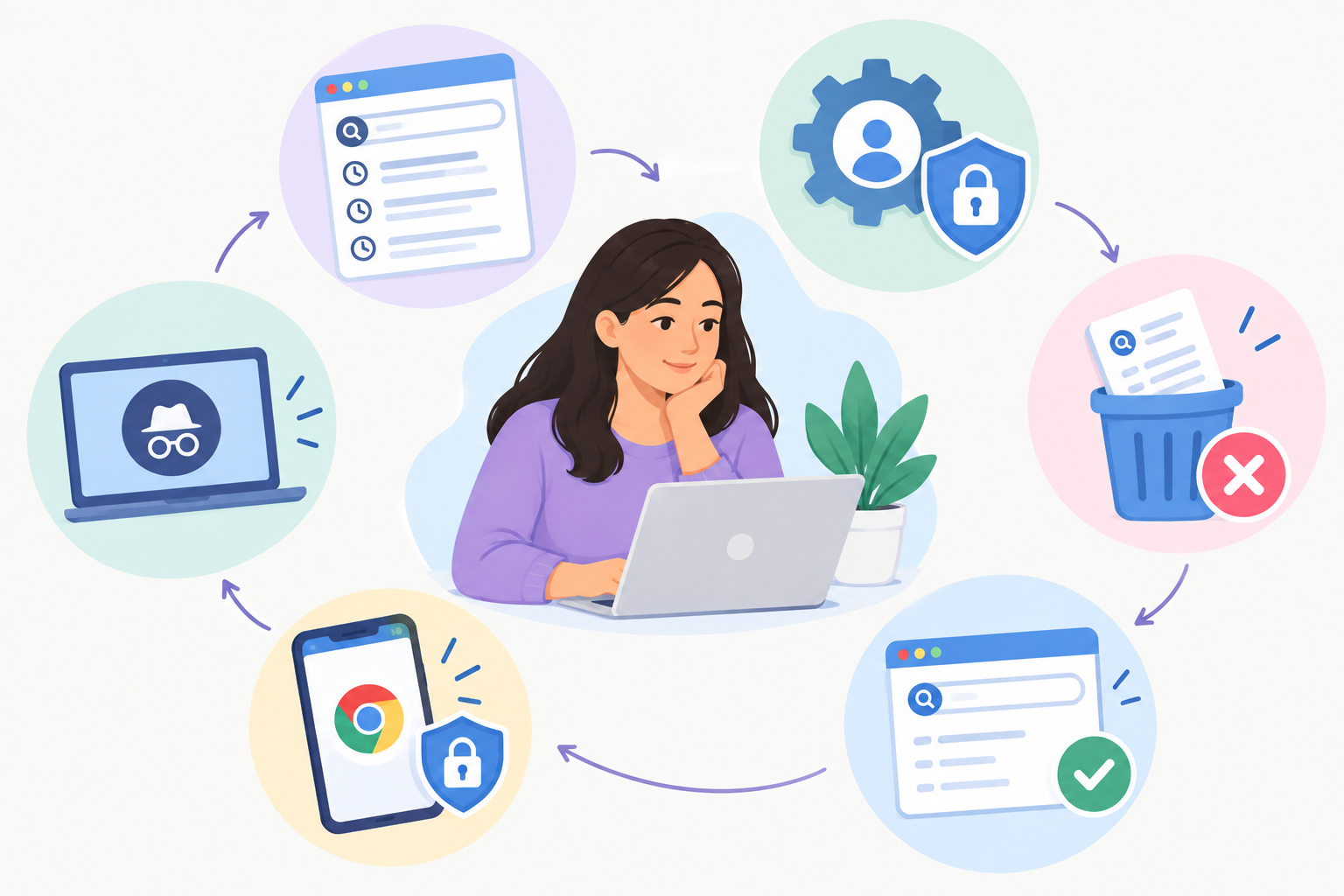
If you used Google Search while signed into a Google Account, your search activity may be stored in your Google Account separately from your browser history.
Google provides tools that allow users to review and delete individual searches, activity from a particular period, or broader activity.
To review Google search activity:
- Open the Google app or your Google Account.
- Go to your Search history or My Activity area.
- Look for abortion-related searches or other activity you want to remove.
- Select the relevant activity.
- Use the available delete option.
- Check whether other related searches remain.
You can also review your activity settings to control what Google saves in the future.
This is important because clearing browser history and deleting Google Account activity are not necessarily the same action.
How to Delete Abortion Searches From Chrome on Android
If you use an Android phone with Chrome, you can delete individual browsing entries or clear browsing data for a selected period.
A general process is:
- Open Chrome.
- Tap the three-dot menu.
- Select Delete browsing data.
- Choose the appropriate time range.
- Select Browsing history.
- Review the other categories before deleting them.
- Tap Delete data.
If you only want to remove specific entries, Chrome also allows individual history items to be deleted instead of clearing everything.
Be careful when selecting additional categories. Clearing cookies, saved information, or other browser data can affect website logins, preferences, and saved information.
Google also explains how users can manage and delete Google activity separately from browser history.
How to Delete Abortion Searches From Chrome on iPhone
Chrome is also available on iPhone, and its browsing history can be cleared separately from Safari.
To remove Chrome browsing history:
- Open the Chrome app.
- Tap the menu.
- Choose Delete browsing data.
- Select the time range you want to clear.
- Choose the types of information you want to remove.
- Confirm the deletion.
You can also delete individual history entries if you do not want to remove all browsing activity.
If Chrome is signed into a Google Account and information is synchronized, check your Google activity separately as well.
How to Clear Abortion Searches From Safari on iPhone
If you use Safari, clearing Safari history can remove websites you visited and related browsing information from the device.
A general process is:
- Open Safari.
- Open your browsing history.
- Select the option to clear history.
- Choose the appropriate timeframe.
- Confirm the deletion.
Safari also has Private Browsing, which prevents private tabs from appearing in Safari history in the usual way.
However, clearing Safari history does not automatically erase information independently retained by websites, other apps, or separate services.
Why Clearing Browser History May Not Be Enough
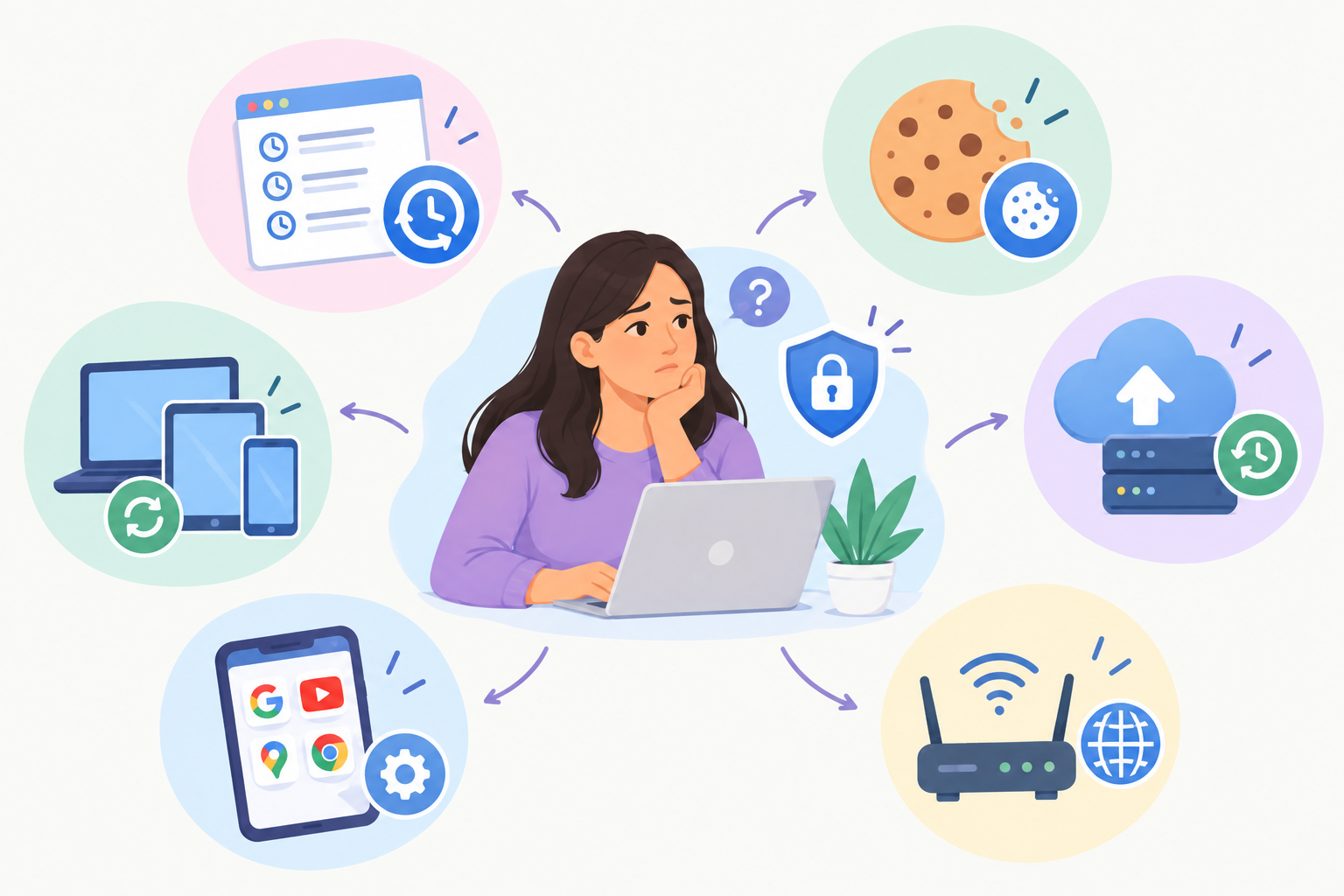
One of the most important things to understand about phone privacy is that browser history is only one place where search activity can exist.
For example, you might:
- Search through the Google app rather than your browser
- Use Chrome while signed into Google
- Have Chrome history synchronized with another device
- Use Safari with iCloud synchronization
- Visit a website that stores information separately
- Have search suggestions generated from account activity
Therefore, if your goal is to remove abortion searches from your phone, consider both your browser history and account-level search activity.
This distinction also matters if you are researching online privacy and abortion access and want to understand the difference between local phone activity and information handled by online services.
Check Your Google Account Activity
If you use Google services, review your Google Account activity after clearing your browser.
Google’s My Activity tools can show activity associated with Google products and allow you to delete individual activity or activity from a selected period.
Look for searches containing terms you no longer want visible.
You can also review automatic deletion settings. Google provides options for automatically deleting certain activity after a selected period.
If you are using a shared device, Google also provides additional verification options for accessing your full My Activity history.
Check for Synced Browsing History
Syncing can be easy to overlook.
For example, if Chrome history synchronization is enabled, browsing history may be available across devices signed into the same Google Account.
Similarly, Safari can synchronize browsing information through iCloud when Safari syncing is enabled.
This means that deleting a search from one device may require you to understand how your account synchronizes information across your other devices.
If you have a phone, tablet, or computer using the same account, review those devices when privacy is important.
Clear Search Suggestions That Keep Appearing
Sometimes a search appears to have been deleted, but related words continue appearing as suggestions.
This can happen because suggestions may come from more than one source.
Depending on the browser and search service, suggestions may be influenced by:
- Local browsing history
- Search history
- Google Account activity
- Previously visited websites
- Personalized search settings
If an abortion-related phrase keeps appearing, check both the browser’s history and the search engine or Google Account activity.
Removing the underlying activity can help prevent an old search from continuing to appear as a suggestion.
Should You Delete Cookies and Cached Data?
You do not necessarily need to delete every type of browser data just because you searched for abortion information.
Cookies and cached files serve different purposes from browsing history.
However, clearing cookies and site data may be useful if you are concerned about information stored by websites on your device.
There is an important tradeoff: deleting cookies can sign you out of websites and remove saved preferences.
If your goal is simply to remove a specific abortion-related search, start by reviewing and deleting the relevant history and account activity rather than automatically deleting everything.
How to Use Private Browsing for Future Searches
If you expect to search for sensitive information in the future, consider using your browser’s private browsing feature.
On Chrome, this is called Incognito mode.
On Safari, it is called Private Browsing.
Private browsing is designed to prevent normal browser history from being saved locally in the same way as regular browsing.
It can be useful when you do not want someone who later opens your browser to see the websites you visited through the browser’s ordinary history.
However, private browsing should not be treated as complete online anonymity.
For example, private browsing does not mean that every website, service, network, or account involved in your activity automatically has no record of it.
For people looking for more information about keeping abortion information private, it is helpful to consider both device privacy and broader account privacy.
Do Not Forget Open Tabs
Deleting browsing history does not necessarily mean every visible trace is gone from your phone.
Check for:
- Open browser tabs
- Recently opened pages
- Bookmarks
- Saved links
- Downloads
- Browser shortcuts
- Search suggestions
An open tab can reveal a sensitive website even if the corresponding history entry has already been deleted.
Before sharing your phone, close sensitive tabs and review your browser’s visible screens.
Review Your Phone’s App History
Your search may have happened inside an app rather than through Safari or Chrome.
For example, you might have searched using:
- The Google app
- A social media app
- A messaging app
- A medical website’s app
- Another search-enabled application
If privacy is important, review the relevant app’s search history and account settings separately.
Deleting Safari or Chrome history does not automatically delete activity stored inside another application.
Use a Strong Phone Passcode
Deleting searches is only one part of protecting sensitive information.
A strong phone passcode can make it harder for another person to access your device and open your browser, accounts, messages, or applications.
If you share your passcode with someone else, consider whether that person can also access your Google Account, Apple Account, browser history, or other private information.
Biometric security such as Face ID or fingerprint authentication can provide another layer of device access protection, depending on your phone and settings.
Review Accounts Used on a Shared Phone
If multiple people use the same phone or device, check which accounts are signed in.
Pay particular attention to:
- Google Accounts
- Apple Accounts
- Chrome profiles
- Safari/iCloud synchronization
- Email accounts
- Search-related apps
A shared account can create privacy issues even when local browser history has been deleted.
If you are concerned that someone else may access your private information, reviewing account access and device security can be more important than simply deleting one search.
What Deleting Abortion Searches Does Not Do
It is important to have realistic expectations.
Deleting browsing history from your phone does not necessarily erase information that may already exist elsewhere.
For example, it does not automatically remove:
- Records independently retained by websites
- Information stored by another app
- Activity stored in a separate account
- Information on another person’s device
- Records associated with services you used
Clearing browser history is therefore different from removing every possible record of online activity.
This is also why digital privacy and confidential abortion services are separate considerations.
What If You Are Concerned About Abortion Privacy Online?
If your concern extends beyond search history, it may help to think about privacy more broadly.
You may want to understand how online activity, healthcare information, insurance communications, and medical records differ.
For example, your browser history is not the same thing as a medical record. Deleting a search from your phone does not delete a medical record, just as a medical record does not automatically create a browser history entry.
If you want to understand whether abortion can appear on a medical record, that is a separate healthcare-record question from deleting browser history.
You can also learn more about whether abortion goes on your health record when considering broader privacy questions.
A Simple Privacy Checklist Before Sharing Your Phone
Before handing your phone to another person, consider checking:
- Browser history
- Google Search history
- Google My Activity
- Open browser tabs
- Search suggestions
- Recently visited pages
- Downloads
- Bookmarks
- App search history
- Synced devices
- Shared Google or Apple accounts
- Phone passcode and account security
You do not necessarily need to erase everything on your phone. Focus on the places where sensitive information could actually be visible.
How to Keep Future Abortion Searches More Private
For future searches, a few habits can reduce the amount of sensitive information saved locally.
Use Private Browsing
Use Chrome Incognito or Safari Private Browsing when appropriate.
Avoid Shared Accounts
If possible, avoid performing sensitive searches while signed into an account that another person can access.
Check Sync Settings
Understand whether browser history is being synchronized across your devices.
Review Search Activity
Periodically review your Google Account or other search-service activity.
Protect Your Device
Use a secure passcode and avoid giving others unnecessary access to your phone.
Close Sensitive Tabs
Do not leave abortion-related pages open if another person may use your phone.
Does Deleting Abortion Searches Make Them Completely Untraceable?
No.
Deleting browser history can remove information from the browser’s visible history, but it does not guarantee that every copy or record of online activity has been erased everywhere.
This distinction is important.
If your concern is specifically about what someone can see when they access your phone, clearing relevant browser and account activity can reduce what is visible there.
If your concern involves broader digital, medical, insurance, or legal privacy, additional considerations may apply.
For example, an insurance statement is different from browser history. If that is part of your concern, you can read about whether an EOB can reveal abortion care separately.
How Serenity Choice Health Can Help
Searching for abortion information is personal, and you may have questions about both healthcare and privacy.
Serenity Choice Health provides abortion-care information and resources designed to help patients understand their options and make informed healthcare decisions.
If you are researching abortion online and are concerned about keeping your browsing activity private, start by reviewing the browser and account settings described above.
For broader questions about abortion privacy and care, Serenity Choice Health offers resources on confidential abortion care and protecting personal information.
Key Takeaway
Knowing how to delete abortion searches from your phone starts with understanding where your search information is stored.
Clear the relevant browser history, review Google or other account activity, check synchronized devices, close sensitive tabs, and consider private browsing for future searches.
Most importantly, remember that browser history is only one part of digital privacy. Removing a search from your phone does not necessarily erase information independently held by websites, apps, accounts, or other services.
Taking a few minutes to review your browser, search account, synchronization settings, and device security can help you better control what sensitive information remains visible on your phone.
FAQ Section
Can I delete just one abortion search from my phone?
Yes. Chrome and other browsers generally allow individual history entries to be removed instead of clearing all browsing history. Google also provides options for deleting individual search activity from your Google Account.
Does deleting browser history delete Google searches?
Not necessarily. Browser history and Google Account search activity can be stored separately. If you searched while using Google services, check your Google Search history or My Activity separately.
Can abortion searches appear on another device?
They can if browsing or account activity is synchronized. For example, Chrome can synchronize history through a Google Account, while Safari can synchronize browsing information through iCloud. Check your account and sync settings if another device may have access.
Does Incognito mode completely hide abortion searches?
No. Incognito mode is primarily designed to prevent ordinary browsing history from being saved locally in the usual way. It should not be considered complete online anonymity or a guarantee that no service can retain information about activity.
How do I clear abortion searches from Safari?
Open Safari, access your browsing history, choose the option to clear history, select the relevant timeframe, and confirm. If you use other apps or search services, review those separately because clearing Safari history does not automatically clear their activity.
Can I protect future abortion searches on my phone?
You can reduce locally stored browsing information by using Private Browsing or Incognito mode, reviewing account activity, checking synchronization settings, closing sensitive tabs, and protecting your phone with a secure passcode.

Dr. James Carter is a board-certified physician and lead clinician at Serenity Choice Health, specializing in reproductive health access and medication abortion protocols. With over 20+ years of experience, he combines clinical expertise with patient-centered care to ensure safe, compassionate, and confidential reproductive healthcare.